Presentations, Documents & Practical Business Assets
Create useful real-world assets: presentations, flyers, simple proposals, certificates, resumes and PDF documents.
Before you start
Open Canva in a separate tab and complete the actions while you read. This course is designed for active practice, not passive scrolling. Keep one folder named Canva Course Practice and save every module project there.
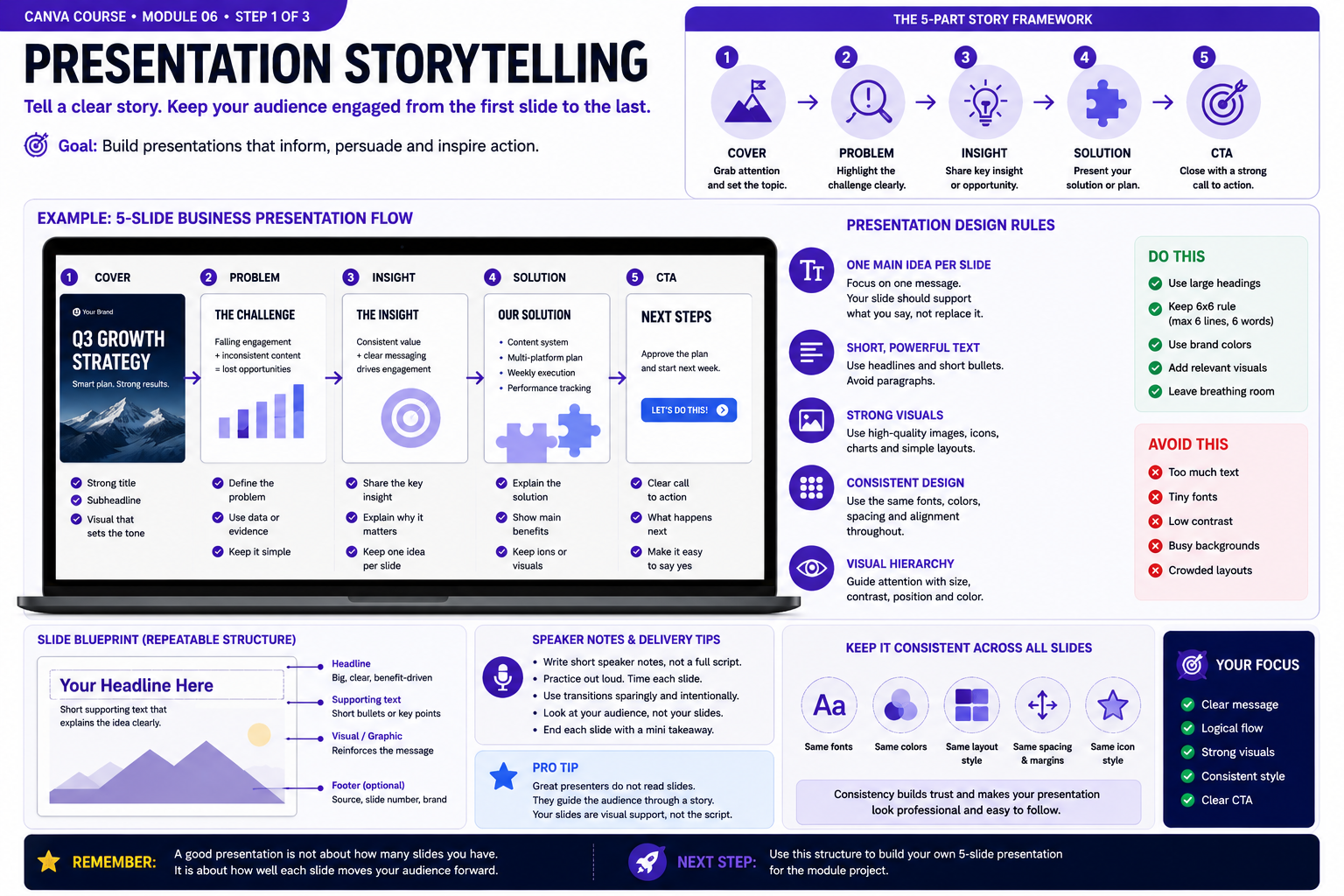
Build the Skill — Presentation storytelling
- Create a five-slide business presentation and plan the story before decorating it. Structure the sequence as Cover, Problem, Insight, Solution and Call to Action so every slide has a clear purpose in moving the audience forward.
- Give each slide one main idea. Use a strong headline, short supporting text and one relevant visual or data point instead of filling the canvas with paragraphs. Keep fonts, colors, margins and visual style consistent throughout the presentation.
- Run the presentation from beginning to end and check whether the story still makes sense without extra explanation. Remove repeated information, strengthen weak transitions and make sure the final slide gives the audience a clear next action. Save this version before continuing.
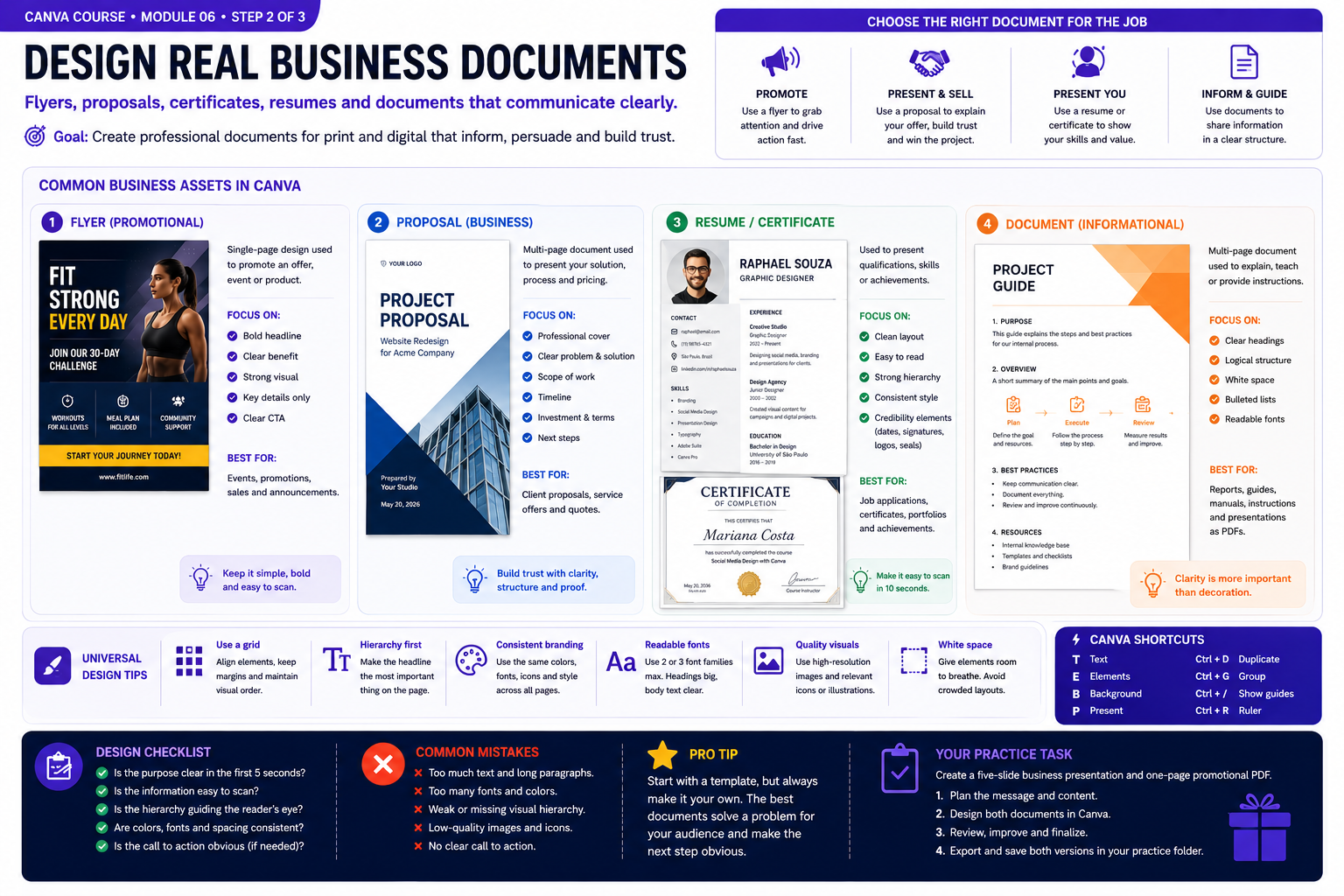
Practice With a Real Design — Flyers, proposals and documents
- Choose a real business purpose before designing. Compare a promotional flyer, client proposal, resume or certificate, and informational document. Notice how each format requires a different balance of headlines, supporting information, visuals and calls to action.
- Build a one-page promotional document with a clear visual hierarchy. Use a strong headline, concise supporting information, consistent margins, readable typography and enough white space for the reader to scan the page quickly. Add only visuals that support the purpose of the document.
- Review the document as if you were receiving it from a real business. Check whether its purpose is obvious within seconds, whether important information is easy to find and whether the next action is clear. Remove unnecessary decoration and correct weak alignment, spacing or hierarchy before saving the final version.
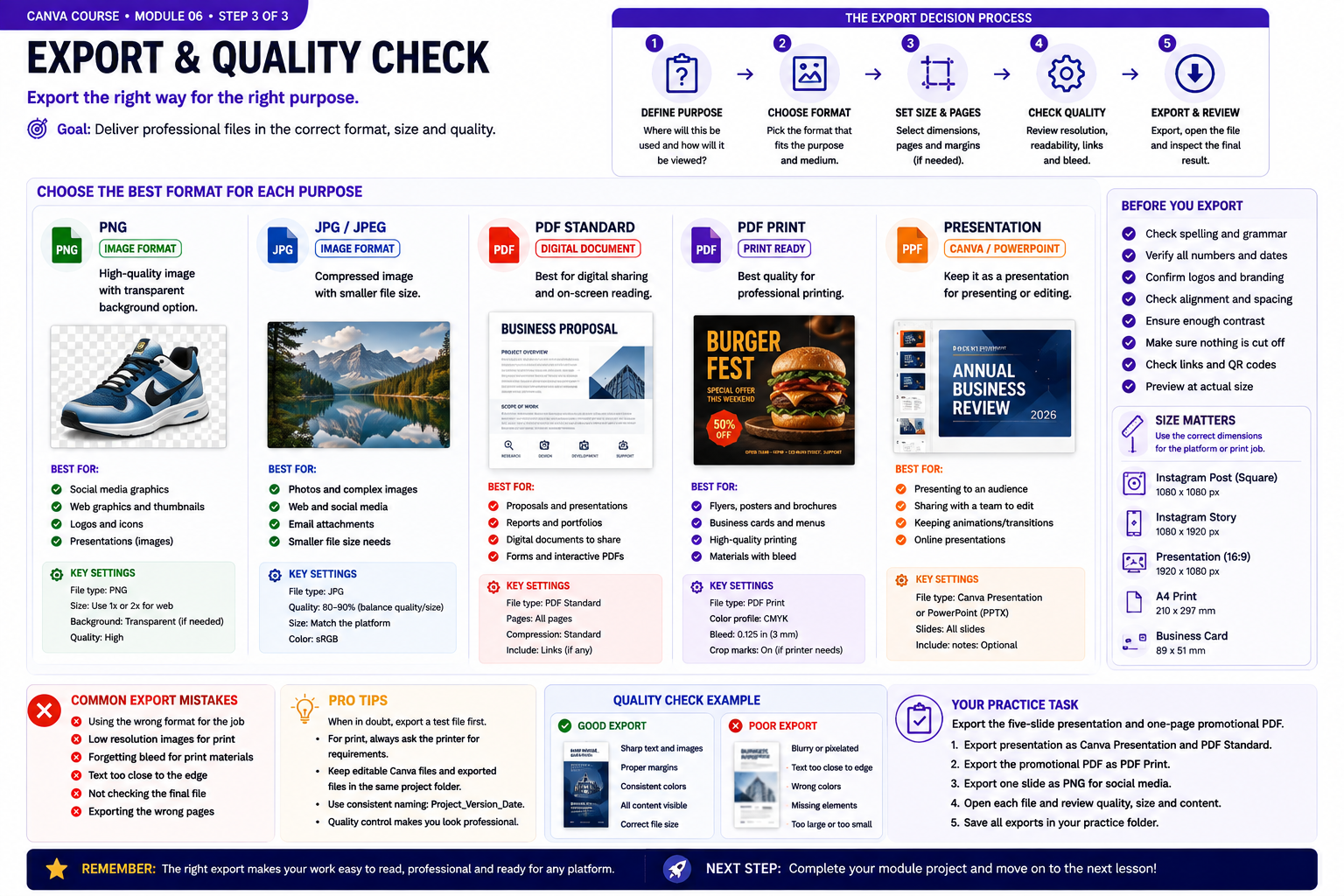
Quality Check & Export — PDF, PNG and presentation export decisions
- Decide how the finished design will be used before exporting it. Compare PNG for high-quality graphics, JPG for smaller photographic files, PDF Standard for digital documents, PDF Print for professional printing and presentation formats when the slides still need to be presented or edited.
- Run a pre-export quality check. Verify spelling, dimensions, page selection, margins, image quality, contrast, links and QR codes where applicable. For printed materials, confirm bleed and printer requirements before creating the final file.
- Export your five-slide presentation in a presentation-friendly format and create a PDF copy for sharing. Export the promotional document as a PDF and one selected graphic as PNG. Reopen every exported file and inspect readability, cropping, page order and image quality before considering the work finished.
Knowledge checkpoint
- Can you explain the main principle of this module in your own words?
- Can you reproduce the core workflow without restarting the lesson?
- Can you identify at least one weak design decision and explain how you would improve it?
- Can you export the result in a format appropriate for its intended use?
Build this before continuing
Build a five-slide business presentation plus a one-page promotional PDF.
Completion standard: create a first version, review it, make at least three deliberate improvements, export the final version and keep both versions so you can see your progress.
Ready to move on?
You are ready when you can complete the module project confidently without depending on the example for every decision. The goal is not memorizing Canva buttons — it is learning to make sound visual decisions on your own.